Will you touch fire?
Probably not — experience has taught you the consequences. Yet your teams continue to “touch the fire” with costly Revit Cloud Worksharing mistakes. Project delays from overwritten models, budget overruns from sync conflicts, and lost billable hours are burning through your margins while competitors deliver faster, cleaner results.
The firms winning major contracts aren’t just using better technology — they’ve eliminated the operational risks that derail projects and erode profitability.
Why jump into Revit Cloud Worksharing without knowing where the cracks usually form? A single misstep in cloud collaboration can ripple across teams, causing costly delays, misaligned deliverables, and ‘who-approved-this?’ moments.
In this blog, we’ll share the hard-earned lessons of experienced Revit users, so you can steer clear of these common pitfalls, avoid the heat, and keep your project running smoothly.
Understanding Revit Cloud Worksharing
Wouldn’t it be difficult for users to have to figure out who’s working in the model—especially if someone left it open and went for lunch?
And wouldn’t it be better if multiple users could work in the same model simultaneously (FINALLY!), rather than taking turns to work in a model, one at a time?
Instead of a LAN-based central file (with local copies that sync to it), the main project model in Revit Cloud Worksharing lives in the cloud. Each team member opens it, works in a local copy, then syncs changes back and pulls updates from others.
Key Concepts:
- Central Model – For example, the architect’s central model in BIM 360 contains the latest design updates from every team member.
- Local Copy – Maria opens the cloud model and works in her local copy to add interior wall layouts.
- Sync with Central – After finishing the electrical layout, John syncs with central so the updates are visible to the rest of the team.
- Publish – At the end of the week, the BIM coordinator publishes the model so stakeholders can review the approved design in ACC Docs.
See, how it works?
Benefits of Revit Cloud Worksharing
- Seamless Multi-location Collaboration: Eliminates VPN latency by streaming model data directly from the cloud.
- Live Updates: Synchronizes element changes instantly across all connected sessions.
- Platform Integration: Links models with ACC’s Issues, RFIs, and Docs for unified project control.
- Improved Accuracy: Locks element ownership to prevent overwrites and version drift—no more outdated drawings.
- Cross-discipline Coordination: Maps 2D CAD layers to BIM elements for synchronized model geometry.
Common Pitfalls in Revit Cloud Worksharing
1. Infrastructure Risks – Project Delays, Cost Overruns
Cloud worksharing depends on reliable bandwidth — weak connections risk failed syncs and lost updates.
Impact:
- Sync errors: Sync failures can halt entire project teams, costing thousands in downtime per incident.
- Outdated or incomplete model data: An engineer works on an old version of the model because yesterday’s updates never downloaded properly.
- Wasted hours redoing work: A detailer spends the afternoon recreating elements that were lost due to a failed upload.
2. Access Control Gaps – Rework, Compliance Failures
Unrestricted editing access invites accidental changes or deletions, especially from the new hires. Without clear workset ownership, conflicting edits can derail progress.
Impact:
- Discipline conflicts: An architect accidentally edits structural columns because workset permissions weren’t restricted to the structural team.
- Loss of key elements: A new user deletes shared furniture families, thinking they were unused, wiping them from multiple views.
- Increased rework: The MEP team has to redo duct layouts after another discipline unintentionally moved ceiling grids.
3. Ignoring Model Health Checks – System Downtime, Crashes
Large models accumulate unused families, links, and views like a warehouse filled with unlabelled boxes. Without regular cleanup, performance drops and corruption risk rises like something important getting lost.
Impact:
- Long load times: Opening the model slows dramatically, affecting productivity.
- Higher crash frequency: The model starts crashing so often you feel like you’re working in a game of “save and pray.”
- Bloated file sizes: Bloated models reduce efficiency, slow down decision-making, and can increase the likelihood of costly errors in construction
4. Overwriting Work Without Communication – Lost Productivity, Duplicated Effort
It’s like two people editing the same paragraph in a shared document—Lost work and duplicate effort frustrate teams and delay delivery.
Impact:
- Lost work: It’s like writing a detailed email for an hour, only to have it vanish because someone else saved over it.
- Duplicate effort: Two people spend the afternoon drawing the same wall layout, not realizing the other is doing it too.
- Team frustration: You log in expecting progress, but instead you’re untangling overlapping changes and arguing over whose version stays.
5. Misunderstanding the Revit Revision Cloud – Regulatory Compliance Risks
Confusing Revit revision clouds with the online platform can disrupt version history and create compliance risks.
Impact:
- Confusion in documentation: A team member marks changes in the wrong location, and reviewers can’t tell which sheet actually contains the update.
- Missed revisions: An engineer forgets to place a revision cloud on a modified wall layout, so the construction team builds from outdated drawings.
- Compliance risks in regulated industries: In a hospital project, incorrect revision tracking causes the as-built record to fail inspection requirements.
6. Opening Cloud Models the Wrong Way – Workflow Disruption, Errors
Cloud worksharing files need to be opened through “Open from BIM 360” or “Open from Autodesk Construction Cloud” in the Revit home screen. You cannot open a model from File > Open or double-click on Windows File Explorer.
7. Version and Build Mismatches – Data sync failures
If you use Desktop Connector for project files outside of Revit Cloud Worksharing — such as reference documents, images, or non-workshared Revit files — make sure it’s always updated. An outdated build can stop File Explorer from showing the latest versions.
8. Overlinking Models – Performance Degradation, Delays
Linking every discipline model as an attachment instead of an overlay will make Revit load slower – causing the model to take five minutes just to open.
9. Not Synchronizing and Relinquishing – Team Bottlenecks, Blocked Progress
Leaving worksets locked overnight or forgetting to relinquish can block teammates from editing and can increase the chance of sync errors.
10. Overloading Models with Unnecessary Details – System performance issues
Over-modeling — adding high-detail families too early — can bloat files and hurt performance. Your file size explodes, view regeneration slows, and Revit starts begging for more RAM.
Best Practices for Avoiding These Pitfalls
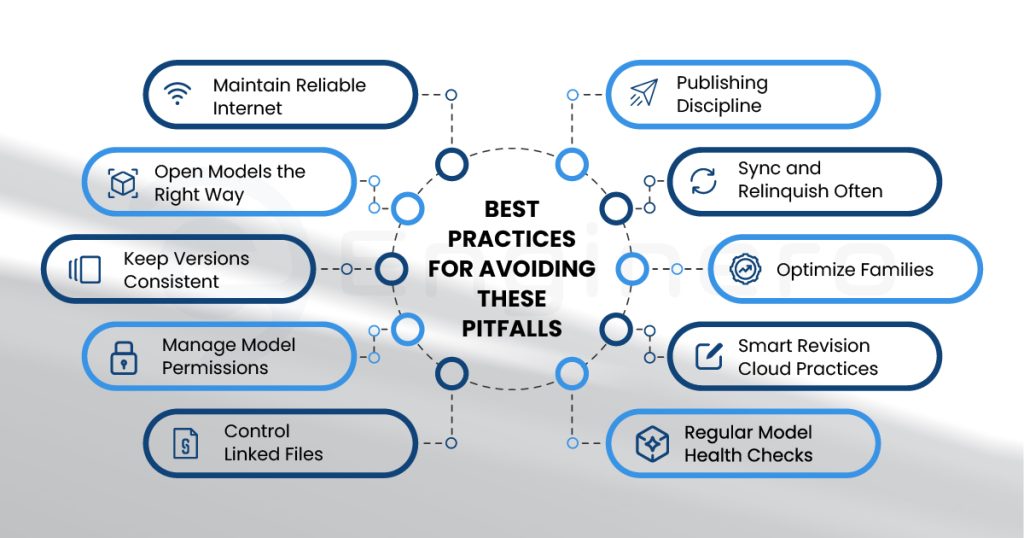
- Maintain Reliable Internet: Use wired internet
- Open Models the Right Way: Follow the above-stated protocol
- Keep Versions Consistent
- Manage Model Permissions
- Control Linked Files: When linking Revit models in a cloud worksharing project, always link them as cloud models directly through Revit, not via Desktop Connector, to ensure links stay live and update correctly.
- Regular Model Health Checks: Audit and compact models periodically.
- Smart Revision Cloud Practices: Train teams on proper revision cloud usage.
- Optimize Families: Use Revit-native, parametric families. Avoid overloading large projects with multi-configurable families.
- Sync and Relinquish Often: Synchronize and relinquish before breaks, meetings, or end-of-day. Avoid simultaneous syncs to reduce conflicts.
- Publishing Discipline: Publish only the necessary views and sheets. Remove unused links before publishing. Audit the model if publishing fails.
Why It Matters
- Reduce rework by up to 30%—direct savings in project hours and costs.
- Accelerate delivery by days to weeks per project, thanks to real-time sync and ownership controls.
- Lower compliance risks by maintaining a single source of truth and clear audit trails.
- Seamlessly integrate with enterprise tools (ACC, RFIs, Docs) for unified data management.
Enginero’s Worksharing Vs Revit’s Worksharing
Enginero emphasizes federated coordination, IntelliClash, and configurable approvals within its platform, whereas Revit relies on ACC services and permissions for cloud collaboration and governance.


| Aspect | Enginero Worksharing | Revit Cloud Worksharing (ACC) |
| Versioning | Built-in iteration management and version control for safe experimentation and rollbacks. | Maintains model versions and history as part of ACC cloud lifecycle. |
| Setup | Simple plugin-based setup — define central file path and publish directly via Enginero. | Requires saving as Cloud Model and enabling Cloud Worksharing with ACC project setup. |
| Linking | Link RVT, CAD, IFC, PDFs, images, and Keynotes from Enginero’s centralized storage with positioning controls. | Links cloud models and references only within ACC projects using Bridge or related tools. |
| Coordination | Federated Model Viewer for multi-discipline model federation and context-based checks. | Conducted across ACC ecosystem; multi-discipline access via shared cloud models. |
| Issues / RFIs | Customizable Issue, RFI, and document approval workflows integrated directly in-platform. | RFIs and submittals available within ACC modules; managed through multiple workflows. |
| Navigation | 2D-to-3D model navigation for accurate review and decision context. | Cloud model navigation through Revit or ACC interface. |
| Offline / Device Access | SmartApp for Windows, Mac, iOS, Android with offline support for field and remote users. | Revit desktop authoring with cloud sync; ACC web/mobile provides limited offline support. |
| Licensing | Single Enginero license covers collaboration and coordination features — no extra entitlements. | Requires BIM Collaborate Pro for Revit Cloud Worksharing access. |
| Cloud Hosting | Enginero hosts and manages its own cloud worksharing environment for controlled, faster access. | Cloud worksharing delivered through Autodesk Construction Cloud / BIM Collaborate Pro. |
Conclusion
Revit Cloud Worksharing empowers AEC teams to collaborate anywhere, anytime — but only if it’s managed carefully. Poor connectivity, version mismatches, unmanaged worksets, and neglected model maintenance can quickly erode the benefits.
By following the best practices— from opening models correctly to syncing and relinquishing often — you can keep your Revit Cloud Worksharing workflows running smoothly.
A little discipline goes a long way in the cloud.
Ready to Make Revit Cloud Worksharing Effortless?
Avoiding pitfalls is only half the battle — optimizing your workflows for speed, accuracy, and coordination is where the real value lies.
At Enginero, we help AEC teams streamline Revit Cloud Worksharing, resolve sync bottlenecks, and set up best practices that stick.
Whether you’re coordinating multi-location teams or managing high-stakes BIM projects, we’ll help you keep every model healthy and every stakeholder on the same page.
Let’s talk — Contact Enginero and get your cloud collaboration running like clockwork.
Leave a Reply